Turn real-world places into downloadable Minecraft worlds.
Complete workflow
Minecraft world generator guide for Java, Bedrock, and real maps
Want to bring a real-world place into Minecraft? This guide explains how to use MaptoCraft'sfree Minecraft map and world generator to create a Java Edition ZIP or Experimental Bedrock .mcworld, then import it on Windows, macOS, Linux, mobile devices, or consoles.
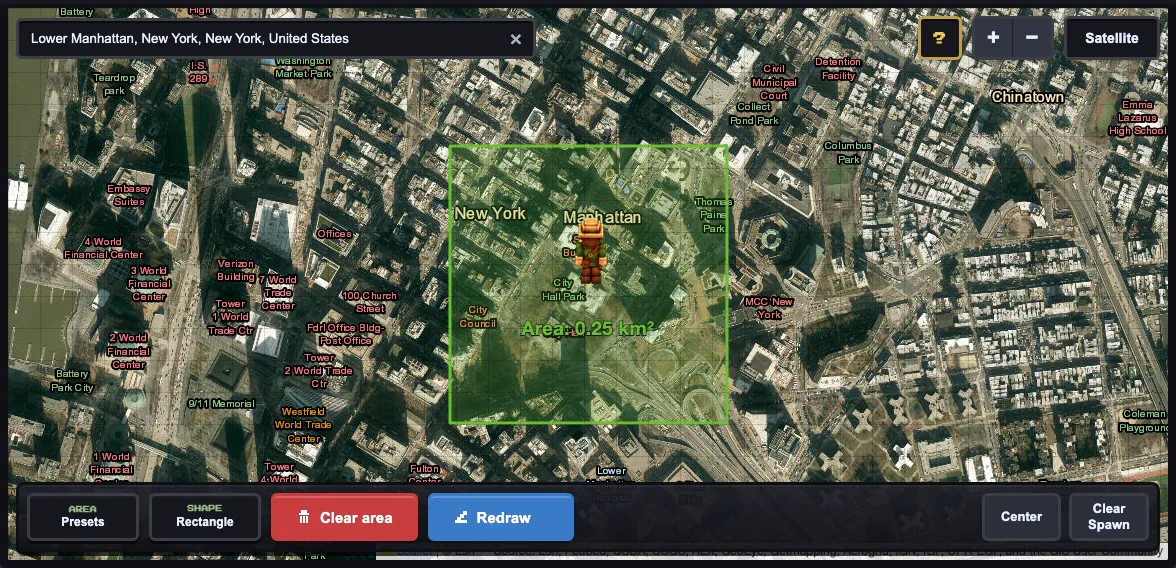
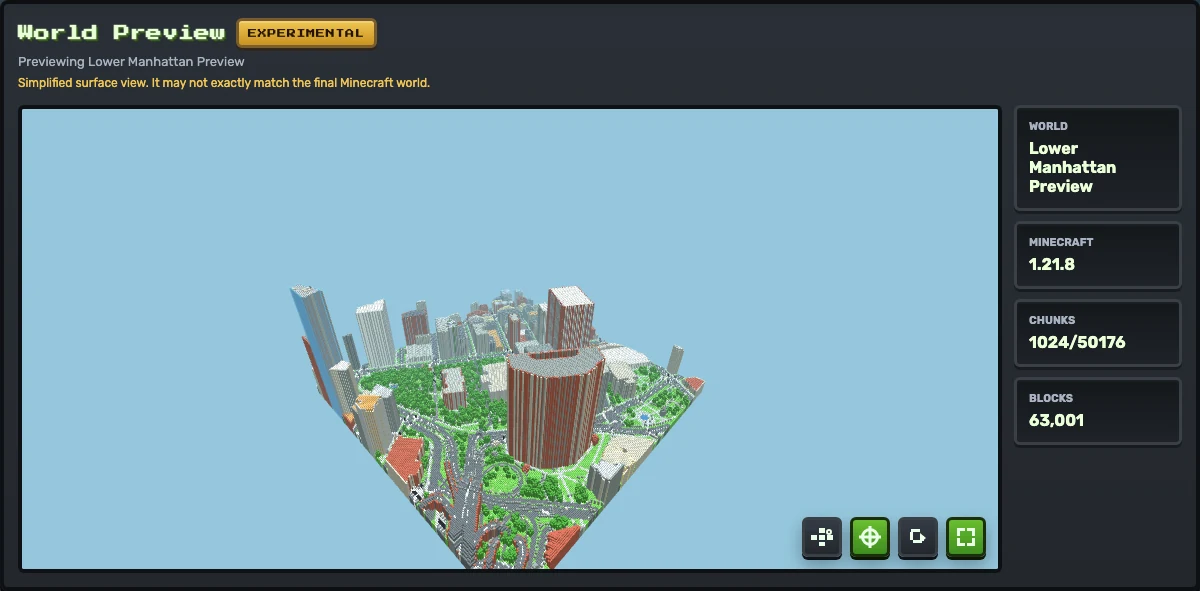
A compact Lower Manhattan map selection using the Tiny 500 m preset. Start with the area first; a focused city block is easier to generate and inspect than a multi-kilometer city selection.Actual MaptoCraft preview output from that Lower Manhattan run. The preview is the sanity check: inspect the shape, spawn context, and block stats before downloading either edition.
Who this workflow is for
MaptoCraft is most useful when you want a recognizable real-world layout inside Minecraft: a city block, campus, landmark, town center, park, or neighborhood. It uses public map data as the source, runs generation in the browser, and packages the result for the selected edition.
It is not a magic scan of every real-world detail. The output depends on the mapped roads, buildings, paths, land features, elevation data, and generation options available for the selected area. Treat the first run as a sanity check: pick a small place, generate, preview, then scale up.
Recommended first-run settings
Area
For Java, use the Tiny 500 m preset first. Experimental Bedrock should stay at 500 m or smaller for a flat test.
Terrain
Keep terrain off first. Bedrock terrain has a stricter chunk limit, so start around 250 m or smaller at scale 1.
Scale
Start at scale 1. Higher scale creates bigger worlds and increases memory/runtime cost.
Ground level
Use the default ground level first. Adjust it later only if the generated world feels too low or high.
Buildings
Keep roofs on. Enable interiors only when you want extra structure detail and can accept slower generation.
Spawn
Both editions use the selected map point. Custom spawn height and facing are Java-only; Bedrock chooses a safe terrain height.
Practical rule: generate a flat test first and follow the on-screen edition validator. A size that works for Java can still exceed Experimental Bedrock's stricter limits.
Choose your edition and platform
MaptoCraft runs in the browser, so generation and play can happen on different devices. The downloaded format determines where and how the world is imported.
Edition
Import and play platforms
Route
Java Edition
Windows, macOS, and Linux
Extract the ZIP and move the generated folder into the active Java saves directory.
Bedrock direct
Windows 10/11, Android, iPhone, and iPad
Keep the Experimental .mcworld intact and open or share it with Minecraft.
Bedrock device-dependent
Chromebook and Amazon Fire tablet
Use Open with Minecraft when offered; otherwise transfer the file to Windows, Android, or iPhone/iPad.
Bedrock consoles
Xbox, PlayStation, and Nintendo Switch
Import on Windows/mobile, upload to a Realm, then open or download it on the console.
Experimental Bedrock: Keep the .mcworld intact and use a current Minecraft release. Import compatibility can vary by Minecraft version and device.
Step-by-step MaptoCraft workflow
Search for a place by name, landmark, or address. If search misses, navigate manually on the map.
Switch between satellite and street map views to understand the area before selecting it.
Open Area Presets and choose Tiny for a fast Java or flat Bedrock first pass. Draw a smaller custom area for Bedrock terrain.
Keep Rectangle mode for the first run. Use Polygon only when you need to avoid water, empty land, or unrelated blocks.
Pick a spawn point near the place you care about, then center it if you only need a safe default.
Open Generation Options only for settings you actually need to change. Avoid changing many controls at once.
Generate, wait for the browser worker to finish, and use Preview before downloading if the result is available.
For Java, extract the ZIP into Java saves. For Experimental Bedrock, keep the .mcworld intact and use the platform route below.
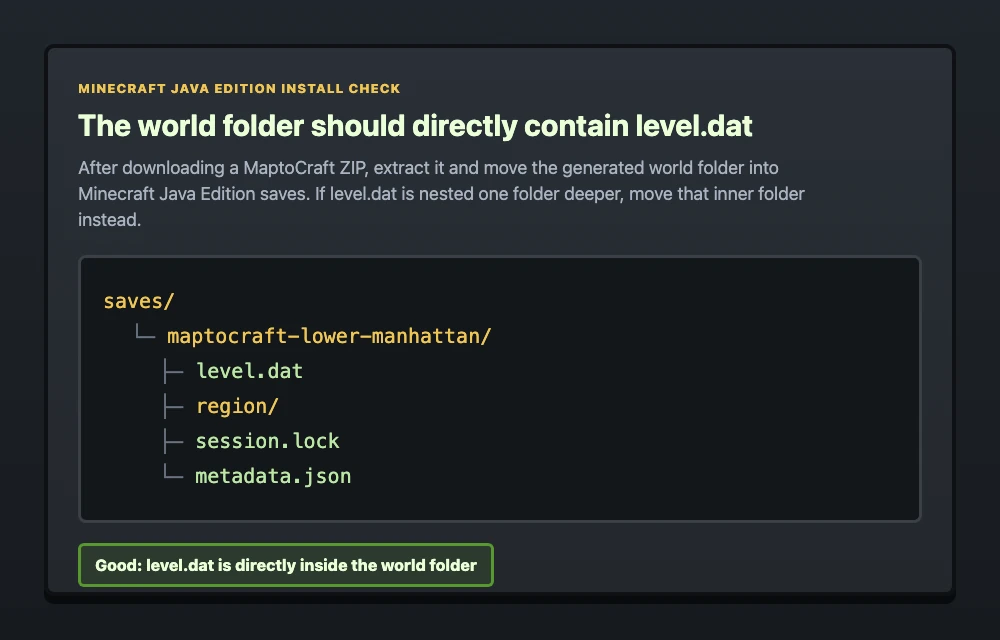
The install check is simple: the folder you move into saves should directly containlevel.dat. If level.dat is inside another nested folder, move the inner folder.
Install the Java ZIP on Windows, macOS, or Linux
The MaptoCraft ZIP is built for Minecraft Java Edition. A successful download includes generated region files under region/, a level.dat file, a session.lock, and supporting files used by Minecraft. Extract it, then move the generated world folder into the active Minecraft Java Edition saves directory.
These are default Minecraft Launcher paths. Custom launchers, modpacks, Flatpak installations, Steam Deck setups, and instance managers can use another game directory. The final folder placed insaves must contain level.dat directly.
Import an Experimental Bedrock .mcworld
Bedrock output is one root-level .mcworld containing Bedrock level files and a LevelDB. Do not extract it or move it into a Java saves folder.
Minecraft on Android and iPhone/iPad now uses Bedrock Edition. Pocket Edition and MCPE are older names players still use for the mobile version; MaptoCraft targets the current Bedrock .mcworldimport route rather than a separate Pocket Edition format.
Windows 10 & 11
Direct import
Download the intact .mcworld on the PC running Minecraft for Windows.
Double-click it, or choose Open with Minecraft.
Wait for import, then open it from the Worlds list.
Android
Direct import
Download or transfer the intact file to the Android device.
Open Files or Downloads, tap it, and choose Minecraft.
Wait for import, then open it from Worlds.
iPhone & iPad
Direct import
Save or transfer the intact file into the Files app.
Use Share or Open In and choose Minecraft.
Wait for import, then open it from Play.
Chromebook & Fire tablet
Device-dependent
Save the file in Files or Downloads.
Use Open with Minecraft when the device offers it.
Otherwise transfer it to Windows, Android, or iPhone/iPad.
Generating on macOS or Linux is still possible: download the intact file in the browser, transfer it to a Bedrock-capable device, and import it there. Java Edition remains the native local Minecraft option on macOS and Linux.
Move the Bedrock world to Xbox, PlayStation, or Switch
Import the intact .mcworld into Bedrock on Windows, Android, or iPhone/iPad.
Open the imported world and upload it to a Minecraft Realm.
Sign in with the linked account on Xbox, PlayStation, or Nintendo Switch.
Open the Realm, or download the Realm world to the console when that option is available.
MaptoCraft does not directly sideload files to consoles. A Realm and the platform's online subscription may be required.
Common failure modes and fixes
Real-map generation can fail for reasons that are not obvious from the search box. If a generation looks empty, try a smaller selection with obvious roads and building outlines. If the browser becomes slow, reduce area size before reducing quality. If terrain fails, turn terrain off and confirm the flat map works first.
No useful buildings: the source map data may be sparse. Try a denser nearby area.
Long terrain run: terrain fetches elevation tiles. Use a smaller area or flat mode.
Java world missing: check the folder nesting, confirm level.dat is directly inside it, and verify the active launcher directory.
Bedrock file will not open: keep the .mcworld intact, move it to local storage, and use Open with Minecraft on a direct-import device.
Bedrock selection blocked: use a smaller area or lower scale; terrain has a stricter chunk limit than flat generation.
Spawn feels wrong: regenerate with a clearer map point. Custom height and facing adjustments are Java-only.
For Java, start with the Tiny 500 m preset, terrain off, and scale 1. Experimental Bedrock flat worlds should also start at 500 m or smaller; Bedrock terrain should start around 250 m or smaller at scale 1 and follow the on-screen validator.
Which platforms can install the Java ZIP?
Minecraft Java Edition runs on Windows, macOS, and Linux. Extract the ZIP and place its generated world folder in the active Minecraft saves directory; custom launchers and instances may use another game directory.
Can I use a Bedrock .mcworld with Minecraft Pocket Edition or MCPE?
Pocket Edition and MCPE are older names for Minecraft on phones and tablets. Current Android and iPhone or iPad releases use Bedrock Edition, so import the intact .mcworld using the Android or iOS steps on this page.
How do I use a MaptoCraft world on Xbox, PlayStation, or Nintendo Switch?
Import the .mcworld on Windows or mobile, upload the imported world to a Minecraft Realm, then open or download it on the console. MaptoCraft does not directly sideload console files, and subscriptions may be required.
Why is MaptoCraft Bedrock output Experimental?
Bedrock import behavior can vary by Minecraft version and device. Keep the .mcworld intact, use a current Minecraft release, and follow the platform-specific import route.
Which Minecraft versions does MaptoCraft target?
MaptoCraft generates Java worlds for Minecraft Java 1.21.8 and Bedrock worlds for Minecraft 1.21.0. Compatibility with other versions can vary.
Can I convert Google Maps into a Minecraft world?
MaptoCraft does not import Google Maps imagery or proprietary map data. Search for the real place, select the area on the MaptoCraft map, and generate supported Minecraft features from OpenStreetMap data, plus elevation data when terrain is enabled.
Why did my generated world fail or look empty?
Common causes are a selection that is too large, sparse OpenStreetMap data, browser memory limits, network limits while fetching map data, or terrain settings that require too many elevation tiles.