Turn real-world places into downloadable Minecraft worlds.
Cities and real places
Minecraft city generator for real streets, landmarks, and neighborhoods
Use MaptoCraft's Minecraft city generator to turn mapped streets, buildings, parks, and landmarks into a playable Java or Experimental Bedrock world. This guide explains which city blocks, campuses, and neighborhoods convert well, which settings to use first, and when to split a large place.
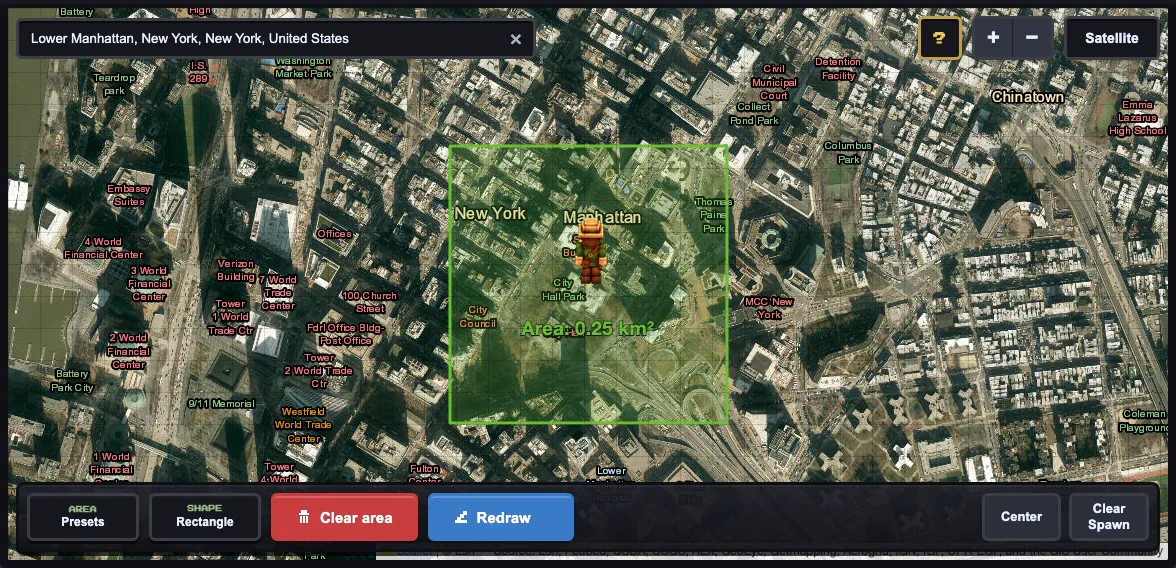
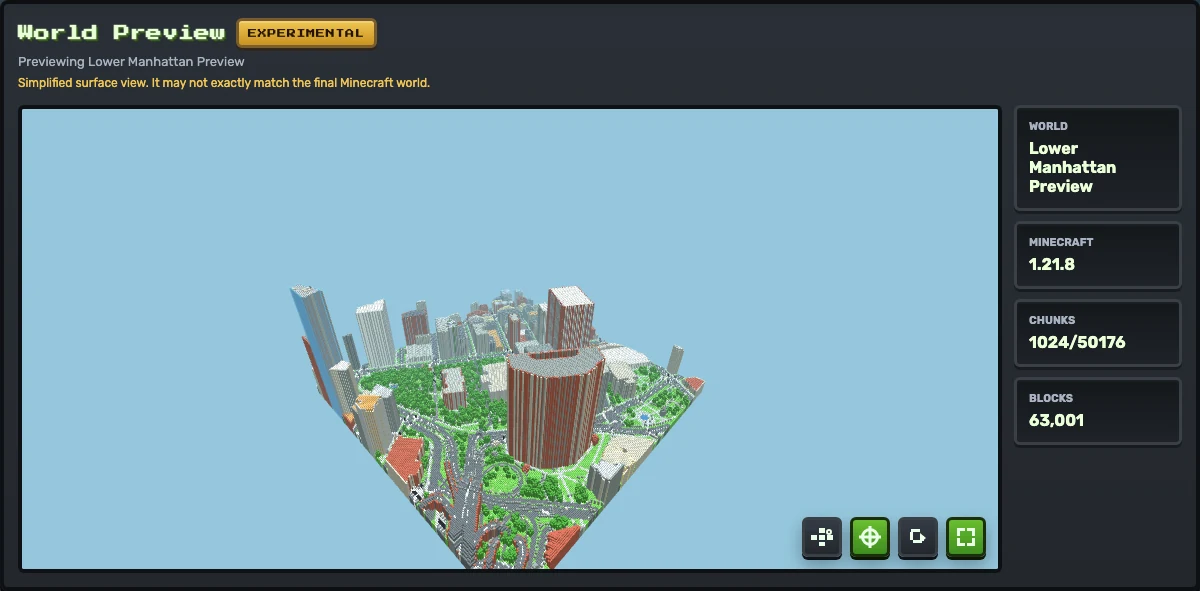
The map selection used for the generated city preview. Lower Manhattan is a strong first city example because roads, building footprints, parks, and water edges are concentrated inside a compact area.Generated preview from that Lower Manhattan city test. Use this view to check whether the street grid, building massing, parks, and spawn context are worth downloading into Minecraft.
Choose the right kind of city selection
City generation works best when the selection contains a clear pattern: a street grid, district center, recognizable landmark, campus quadrangle, waterfront, plaza, or park. A whole city may sound appealing, but it often produces slower generation, more memory pressure, and a world that is harder to inspect.
Start with one useful piece of the place. For a downtown, choose several blocks. For a landmark, include the paths, nearby roads, and open spaces around it. For a campus, select the main quad or core buildings first. For a neighborhood, choose the densest block rather than the entire suburb.
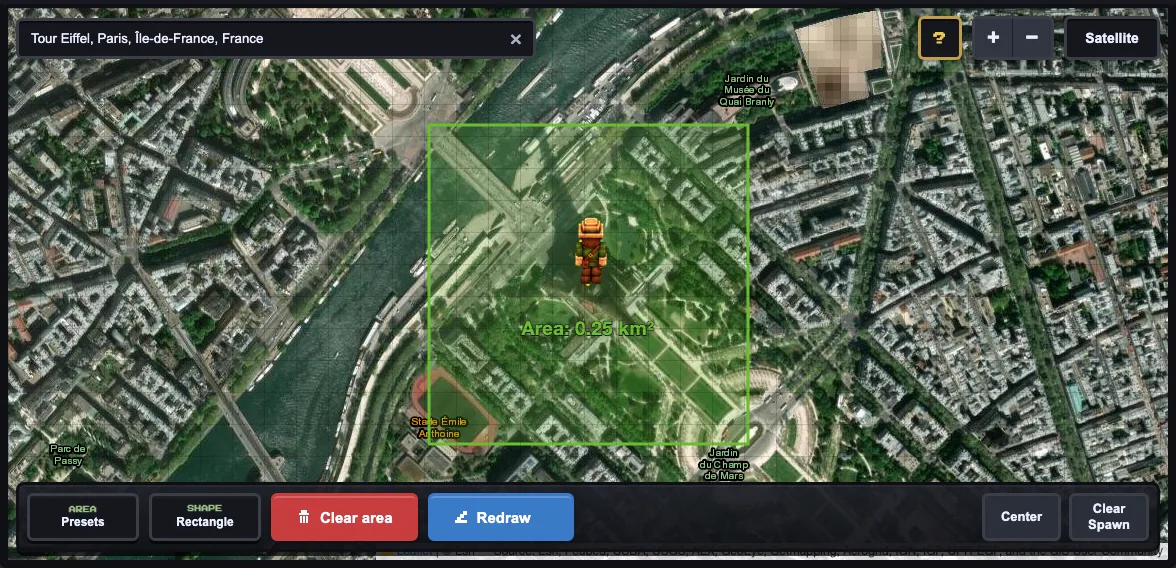
Landmark selections should include context. A 500 m area around the Eiffel Tower captures surrounding paths, parks, roads, and buildings that help the place feel recognizable.
City and landmark settings that usually work first
Dense city block
Tiny 500 m, terrain off, scale 1, roofs on, preview before download.
Landmark or park
Use Tiny 500 m first. Small 1 km is the next measured step for either edition at scale 1; follow the Bedrock validator.
Campus
Use Tiny for either edition or Small for Java. Keep terrain off unless slopes matter, and spawn near the main quad or entrance.
Hilly city
Run a flat test first. For Experimental Bedrock terrain, draw around 250 m or smaller at scale 1; Java can start larger.
Edition check: Java supports larger city experiments. Experimental Bedrock has a measured 1024×1024 block boundary, so follow the validator before generating.
When to split a city into multiple worlds
If you want a large city, treat it as a series of focused generations. Generate the financial district, park, campus, waterfront, or landmark zone separately. This gives you cleaner tests, makes failures easier to diagnose, and avoids asking the browser to process a massive area in one run.
Use one 500 m test to confirm the city has useful map data.
Use separate worlds for different districts if they have different terrain or density.
Keep a note of the settings that worked for each area.
Only try larger selections after smaller ones generate and preview correctly.
Troubleshooting city results
City worlds can fail in different ways. If roads appear but buildings are sparse, the area may lack mapped building footprints. If generation is slow, the area is probably too large or terrain is doing extra work. If the world feels hard to recognize, include more surrounding context rather than only the center point.
Too empty: choose a denser mapped block or inspect the OpenStreetMap data first.
Too slow: use Tiny, disable terrain, and keep scale at 1 for the next test.
Landmark unclear: include paths, roads, open spaces, and nearby buildings.
Spawn awkward: place spawn on an open point. Custom spawn height and facing are Java-only; Bedrock selects a safe height.
Start with a dense 500 m flat city block or landmark area with visible roads and building outlines. That is a practical Java first test and near the upper starting size for Experimental Bedrock at scale 1.
Is MaptoCraft only for big cities?
No. It can also work for neighborhoods, campuses, town centers, parks, landmarks, and small districts when the source map data is detailed enough.
Should I enable terrain for a city?
For a first city test, terrain off is usually better. Turn terrain on later if hills, slopes, or coastlines are important to the place.
Why does a landmark need surrounding context?
Landmarks are easier to recognize in Minecraft when paths, roads, parks, buildings, or water around them are included in the selected area.
Do Java and Experimental Bedrock use the same city settings?
No. Java allows much larger selections. Experimental Bedrock should start with a flat area around 500 m or smaller at scale 1, while Bedrock terrain should start around 250 m or smaller and follow the on-screen validator.